TL;DR - If you build with symbol tables intact, find your PID, and hook into it with perf record and bpftrace, you will have usable data dumps you can inspect with scripts and flamegraphs.
I’ve been building an extension that embeds an MQTT broker into Postgres, and spent time tuning performance and throughput. This post walks through the setup I used, and should be generic enough to apply to any pgrx extension.
The goal: figure out where the extension is spending its time, both on-CPU and while blocked off-CPU.
Build flags
In your Cargo.toml, there are a few build directives that will ensure the built binary (the .so your compiler emits, and Postgres loads) will have the necessary symbols for the profiler to read & understand what is happening.
[profile.release] # or whatever profile you're going to profile
strip = "none" # keep symbol table (.symtab)
debug = "line-tables-only" # keep the line table (.debug_line)
strip = "none" answers "what function contains this address"
debug = "line-tables-only" will answer "what source line did this instruction come from"
Finding your target PID
Since a pgrx extension isn’t just a binary you can execute, but runs as a process owned by Postgres, we can’t immediately reach for something like cargo flamegraph
pgrx extensions can execute in two places: SQL backends and background workers.
SQL backend: your extension code executes as part of a client connection's backend. This is per-session, so you can find the PID from inside your session. You will keep this session open while you profile the process, and use it to run the workload you’re testing with.
select pg_backend_pid();
Background worker: this is a long-lived process that Postgres starts, and runs independently/out-of-band with client sessions.
Find it from SQL:
-- from any connection
SELECT pid, application_name, backend_type
FROM pg_stat_activity
WHERE backend_type = 'background worker';
-- You will need to pick the worker for *your* extension, there will be multiple returned.
Or from your shell:
ps -eo pid,cmd | grep 'your_extension_name'
Exercising your extension
For a useful profile, you will need to exercise your extension while you sample it.
Importantly, this workload should be varied or at least representative of real conditions you want to improve. A typical Postgres extension might be bottlenecked in several different places, depending on the workload that it's running.
Think through various scenarios you might want to observe:
- Steady state: What happens when throughput is sustained
- Bursts: what happens when you get a sudden spike?
- Large payloads: Do these cause an edge case with a lot of overhead?
- Connection storms: Do you have a lot of overhead by connection? Can you weather this?
Profiling on-CPU
On-CPU here refers to time spent where your extension's instructions are being actively executed by the CPU, not waiting on something like the disk.
The Linux util perf record will sample your process at a given rate, recording the instruction that is being executed (& the call stack for it).
Note: in order to successfully use perf record, you may need to enable capabilities for it on your machine. Here’s a sample, though path might differ with your operating system:
sudo setcap cap_perfmon,cap_sys_ptrace+ep /usr/lib/linux-tools-6.8.0-110/perf
Using perf record is simple, once you have your process running with a workload and have its PID.
PID=$your_target_pid

perf record -F 99 -g --call-graph dwarf,16384 \
    -o perf.data -p "$PID" -- sleep 30
About the arguments:
-F 99: Sample at 99 Hz - this is notably not 100 Hz, in case your extension does something at 100 Hz already, which might synchronize with the profiler.--call-graph dwarf, 16384tells perf to use.eh_frame/.debug_frameunwind table to read the stack.16384denotes the snapshot size for the sampled stack. 16384 should be large enough to get a useful stack from your extension.
We can then render this as a flamegraph with any number of flamegraph utils. I used brendangregg/FlameGraph.
perf script -i perf.data | \
    stackcollapse-perf.pl | \
    flamegraph.pl --title "my-extension (on-CPU)" > cpu.svg
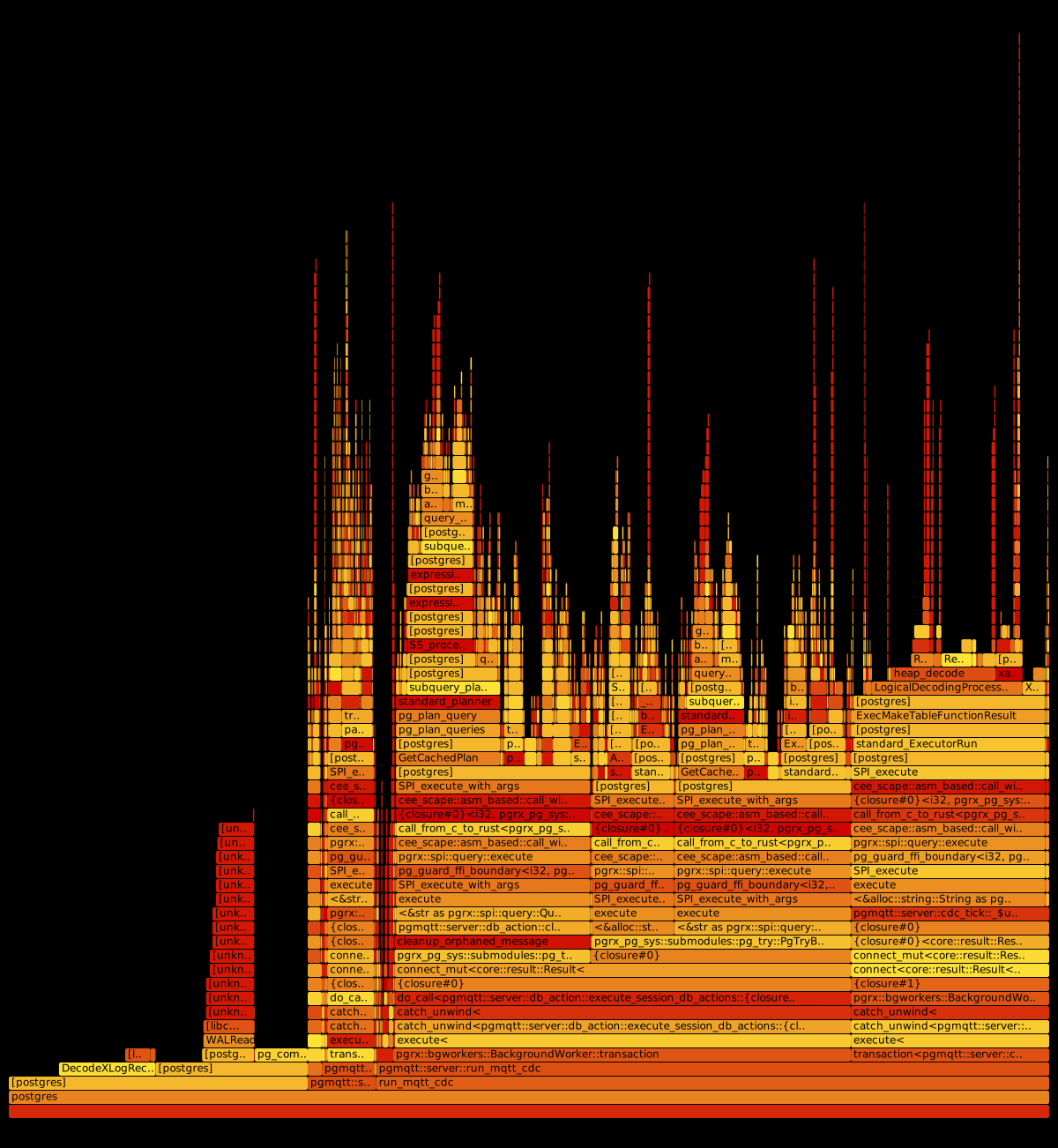
Flamegraphs are just one way of reading the perf data. To interpret these, take a look at the width of frames in the flamegraph - the wider they are, the more perf samples landed in these frames (implying more time was spent there). Frames are stacked on top of each other to represent call chains. Functions that take up a lot more width in the graph than you expect are what you should prioritize investigating.
Profiling off-CPU
Off-CPU time here refers to time your process wasn't running, and was waiting on something to resume execution on the CPU. In many extensions, especially those that involve interacting with data-on-disk, off-CPU time will dominate on-CPU time.
perf in its default configuration can’t do this, since there’s nothing to be sampled.
The Linux util bpftrace can use eBPF to hook into the kernel scheduler & capture when your process is moved on/off the CPU. The idea is that we can record the stack and timestamp when your process is descheduled, and when it gets rescheduled, we can compute how long it was off the CPU (blocked, waiting on something like disk write). The script we supply to bpftrace below does exactly that.
sudo bpftrace -p "$PID" -e '
tracepoint:sched:sched_switch
/ args->prev_pid == $1 /
{
    @off_kstack[args->prev_pid] = kstack;
    @off_ustack[args->prev_pid] = ustack;
    @off_ts[args->prev_pid]     = nsecs;
}

tracepoint:sched:sched_switch
/ args->next_pid == $1 && @off_ts[args->next_pid] != 0 /
{
    $delta_us = (nsecs - @off_ts[args->next_pid]) / 1000;
    @offcpu[@off_kstack[args->next_pid],
            @off_ustack[args->next_pid]] = sum($delta_us);
    delete(@off_kstack[args->next_pid]);
    delete(@off_ustack[args->next_pid]);
    delete(@off_ts[args->next_pid]);
}' "$PID"
The output from this isn’t in a format that most tools are ready to understand: it’s a textdump of form:
@offcpu[kstack, ustack]: microseconds.
Parsing and folding this output into something useful (like an aggregated table, or a flamegraph) will need some code to process it in. I have done this with a python script bundled with profile.sh, which we’ll get to shortly.
Profiling Together
On-CPU and off-CPU profiling are complementary, and can and should be run together. For my extension, I wrapped the whole workflow into a shell script to handle all of this.
./profile.sh \
    --pid-pattern "pgmqtt" \
    --mode both \
    --duration 60 \
    --workload "python3 simulate_load.py" \
    --label baseline
This will locate the PID for a background worker for you, run both on & off CPU profilings on it with your given workload, and will render this all into tables and flamegraphs for you to study. Here is an example of output from my off-CPU processing:
  [epoll]       1201654 us   70.1%
  [other]        344596 us   20.1%
  [fsync]         81566 us    4.8%
  [futex]         76557 us    4.5%
  [disk-io]        8651 us    0.5%
Case study: my experience with pgmqtt
I arrived at profile.sh by iterating over my own extension, trying to squeeze out higher throughputs while maintaining durability guarantees. Here’s what using profile.sh to make iterative improvements actually looks like.
pgmqtt is a PostgreSQL extension that embeds an MQTT broker, and for it to have some use beyond a CDC source (or event sink), I needed to ensure we had decent performance characteristics. Although there are plenty of MQTT deployments out there that do not see a very high throughput, it is definitely worth chasing some higher throughput to increase the ceiling on workloads that can use pgmqtt.
In MQTT, “Quality of service 0” (QoS 0) is the most basic level for messages: there are effectively no guarantees. A publisher sends a message, and expects the subscriber to either get it or not get it. A best-effort attempt is made to deliver it to the subscriber, but usually this QoS is used in cases where its okay to miss some events.
Quality of service 1 (QoS 1) is the level where guarantees start to matter. QoS 1 is typically referred to as "at least once", meaning if a publisher saw a PUBACK from the broker for their PUB, they know that any subscribers will be delivered the message at least once. This requires us to store the message in case the broker crashes before we can confirm the subscriber has received the message.
I focused on these two QoS levels for my runs. A central feature for pgmqtt is Postgres CDC driving mqtt publishes, but I found CDC-driven publishes to be very fast already, and took a backseat to optimizing regular QoS0/QoS 1 throughput.
Baseline run: QoS0
On-CPU was quite fast, I observed no obvious bottlenecks. Skipping over this to off-CPU:
I expected little off-CPU interaction for QoS0, since durability is not a requirement for QoS 0, and found this to be the case:
| Reason | Time (µs) | Share |
|---|---|---|
[epoll] | 28,605,318 | 99.1 % |
[other] | 262,519 | 0.9 % |
[fsync] | 6,628 | 0.0 % |
99.1% of the off-CPU time was epoll - this was the background worker waiting on the next tick to resume reading from clients & publishing.
Baseline run: QoS 1
Off-CPU was broadly similar to QoS0, but with fsync taking a much larger (but negligible compared to wait time) slice of time, from interactions with the filesystem (as QoS 1 messages must be persisted).
| Reason | Time (µs) | Share |
|---|---|---|
[epoll] | 23,198,201 | 99.2 % |
[fsync] | 129,983 | 0.6 % |
[other] | 46,530 | 0.2 % |
Observed throughput:
- Publisher side: 228 msg/s
- Subscriber side: 574 msg/s
We saw way lower throughput with QoS 1 than with QoS0: 228 msg/s was lower than I've seen in prior benchmarks - normally I would expect to see > 1000 msg/s when testing the extension.
Looking at on-CPU, we see a lot of samples on:
DecodeXLogRecord: PostgreSQL's WAL record deserialiserpg_comp_crc32c_armv8: CRC verification of WAL recordsWALRead: reading bytes from WAL segment files
This means that WAL decoding dominated our CPU time, even though we weren't testing any CDC-driven messages in this profiling run.
With this run, we were causing a lot of churn in the WAL from our persisted messages. This churn meant we were not able to keep up with our (unthrottled) publisher's rate, and once their buffer reached our 64kb-per-tick ceiling, the publishers were dropped. This caused their rate to zero out for the remainder of the run, causing the low average publish rate. We don't typically see this problem in our normal performance tests, since our publishers were throttled to not be disconnected by the broker.
First Optimisations:
- Configure the tick interval, allowing us to handle more messages simply by waiting less
- Configure buffer size limit for clients, giving us a new default of 256KiB
- Read from client socket until WouldBlock
Run 2 - QoS0
No changes to throughput, as expected. When there aren't any messages to persist, we don't cause WAL churn, and don't encounter the backpressure problem.
| Reason | Time (µs) | Share |
|---|---|---|
[epoll] | 27,841,203 | 99.0 % |
[other] | 218,447 | 0.8 % |
[fsync] | 60,112 | 0.2 % |
We did notice an increase in fsync share for QoS0 - since we are ticking much more often, we also poll for CDC changes a lot more. This is still negligible for QoS0.
Run 2 - QoS 1
Observed throughput:
- Publisher side: 1,907 msg/s
- Subscriber side: 6,843 msg/s
Way better - 8.4x improvement at the same publisher load. This was largely from us no longer seeing the publishers get dropped
| Reason | Time (µs) | Share | Run 1 share |
|---|---|---|---|
[epoll] | 4,614,221 | 19.7 % | 99.2 % |
[fsync] | 7,541,088 | 32.2 % | 0.6 % |
[other] | 10,897,344 | 46.5 % | 0.2 % |
[net] | 367,503 | 1.6 % | 0.0 % |
We see that we now spend only 19.7% of blocked time waiting on the WaitLatch (epoll, which is what WaitLatch ends up calling), meaning the broker is spending a lot more time actually working.
Note: we kept this configurable, since it may be desirable for a DB admin to have the MQTT broker do less work, and give the rest of the server more CPU + disk time.
[other] has become the dominant share at this point - at this point, it would be valuable to break this down further, if you want a better at-a-glance output for this.
It would get repetitive to detail the half-dozen further iterations I went through. Instead, I will summarize some of the further fixes I made and why:
| What | Why |
|---|---|
| Gated hot-path logging | Increased blocked time for little gain |
| Set transient/cache tables as UNLOGGED | Decreased WAL churn for internal tables that do not need durability |
| Allow CDC tick frequency to be configurable | Compensate for the increase in WAL reads from a very low wait time - CDC is quite fast, even if only flushed every few ticks |
| Prepare statements | Eliminate per-call planning cost |
| Smarter socket writing (write_buf/try_write) | Don't block BGW on slow TCP send |
| Backpressure clients (or, just stop reading their buffer) rather than dropping them | Not completely based off of profiling, but a more intelligent approach than dropping as soon as a buffer size is exceeded - inspired by our buffer increase to 256KiB |
Set replica identity nothing on some internal tables | Save some WAL volume from tables that needed no logical WAL subscriptions |
| Set client_id type to collate C | We only need UTF-8 byte comparisons on this ID, we won’t ever need to sort/etc. This saves us from spending a bunch of time on varstr_cmp |
| Better gating on CDC processing check | Skipping earlier meant unrelated DB churn wouldn’t eat up CPU cycles |
The biggest wins were from tackling the things that looked “worst” in the tables & flamegraph, like taking a look at [epoll] 99.2% and thinking that's a lot of time to throw away while messages could be getting processed. Having profiling data makes chasing performance far more tractable.